
How to Set Up Your PS5 for the Best Gaming Experience
Miles Telecom ·
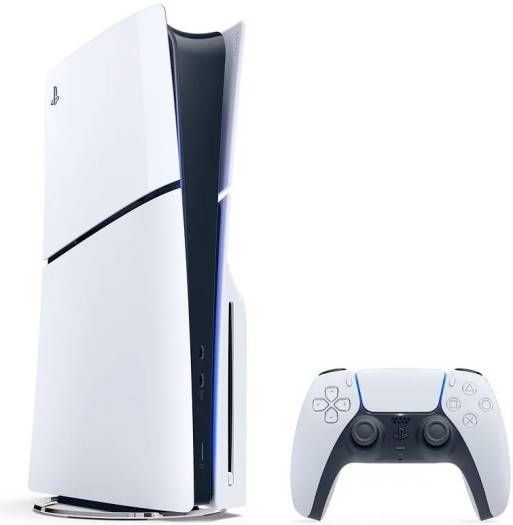
Getting a new PS5? A few minutes in the settings makes games look and feel better. Follow these steps in order.
1. Placement and cables
- Leave about 10cm around the console for airflow.
- Use the included HDMI cable and plug it into an HDMI 2.1 port on your TV if it has one.
- Use a wired network cable for the most stable online play.
2. TV settings
- Turn on your TV's Game Mode to reduce delay.
- Turn on "Input signal plus" or "HDMI Enhanced" (the name varies) for the PS5's input.
3. PS5 video settings
- Settings > Screen and Video > Video Output: set Resolution to Automatic and 120Hz Output to Automatic.
- Run Adjust HDR and follow the on-screen steps.
- Settings > Saved Data and Game/App Settings > Game Presets: choose Performance Mode for smoother gameplay.
4. Sound
Turn on 3D Audio for headphones under Settings > Sound. Run the profile test to tune it to your ears.
5. Storage and updates
- Enable automatic updates in rest mode.
- Rest mode settings: allow "Supply Power to USB Ports" so controllers charge overnight.
- Need more space? Read our storage guide.
6. Family and security
Turn on two-step verification for your PlayStation account, and set parental controls for children.
Shop at Miles Telecom
Browse all PS5 consoles и PS5 controllers. Prices on this page update from our store automatically, so they always match the product page.