
How to Set Up Your PS5 for the Best Gaming Experience
Miles Telecom ·
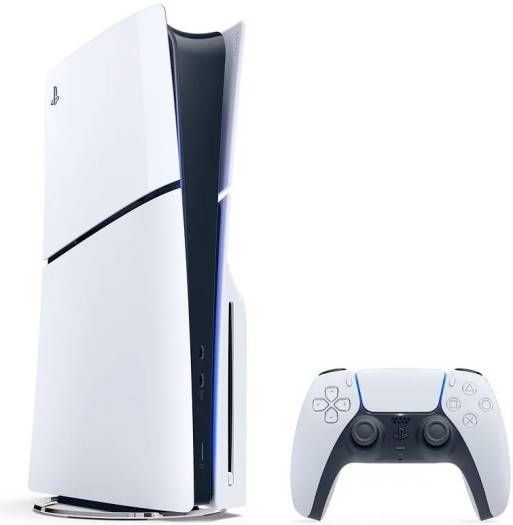
Getting a new PS5? A few minutes in the settings makes games look and feel better. Follow these steps in order.
1. Placement and cables
- Leave about 10cm around the console for airflow.
- Use the included HDMI cable and plug it into an HDMI 2.1 port on your TV if it has one.
- Use a wired network cable for the most stable online play.
2. TV settings
- Turn on your TV's Game Mode to reduce delay.
- Turn on "Input signal plus" or "HDMI Enhanced" (the name varies) for the PS5's input.
3. PS5 video settings
- Settings > Screen and Video > Video Output: set Resolution to Automatic and 120Hz Output to Automatic.
- Run Adjust HDR and follow the on-screen steps.
- Settings > Saved Data and Game/App Settings > Game Presets: choose Performance Mode for smoother gameplay.
4. Sound
Turn on 3D Audio for headphones under Settings > Sound. Run the profile test to tune it to your ears.
5. Storage and updates
- Enable automatic updates in rest mode.
- Rest mode settings: allow "Supply Power to USB Ports" so controllers charge overnight.
- Need more space? Read our storage guide.
6. Family and security
Turn on two-step verification for your PlayStation account, and set parental controls for children.
Shop at Miles Telecom
Browse all PS5 consoles and PS5 controllers. Prices on this page update from our store automatically, so they always match the product page.